
How to use picture-in-picture in Google Meet
Last updated: October 23, 2026
Picture-in-picture puts a small, movable copy of your Google Meet call on top of whatever else you open. You can check a doc, write notes or answer an email and still see who's talking.
This guide shows how to open it by hand or automatically, turn the automatic version off, and fix it when it won't appear. Steps and labels follow Google's own help page, checked in October 2026.
What you need
- Google Chrome on a computer. Google's help says picture-in-picture "is only available with Google Chrome on a computer." On a Mac, that means Chrome, not Safari.
- An up-to-date Chrome. Google doesn't list a minimum version for Meet's floating window, but the automatic pop-out relies on a Chrome feature for video calls that arrived in Chrome 120.
- Any Google account. Google says automatic picture-in-picture is available to all Google Workspace customers, Workspace Individual subscribers and personal Google accounts. No paid plan needed.
Google's picture-in-picture help only covers Chrome on a computer, so the steps here don't apply to the Meet apps on Android, iPhone or iPad.
Open picture-in-picture manually
- Join your meeting in Chrome.
- At the bottom of the screen, click More options (the three-dot button).
- Click Open picture-in-picture.
- A small version of the meeting appears at the bottom right of your screen. Switch to another tab, window or app and it stays on top.
To move the window, click along its top and drag. To resize it, drag an edge. To close it and return to the full meeting, click Back to tab at the top right of the small window. You stay in the call.
Make it pop out automatically when you switch tabs
Meet can open the floating window by itself when you switch tabs during a call, and when you share a window or your entire screen. Google turned this on by default, so it may already work for you. Two switches control it: a permission in Chrome and a setting in Meet.
Step 1: Allow it in Chrome
- In a meeting, hover over Chrome's address bar.
- On the left of the web address, click View site information.
- Turn Automatic picture-in-picture on.
Google notes that automatic picture-in-picture for tab switching needs this browser permission once. If Chrome shows a prompt about it, choose Allow on every visit so you aren't asked again.
Step 2: Choose when Meet uses it
- In Meet, at the bottom of the screen, click More options.
- Click Settings > General.
- Find Automatic picture-in-picture.
- Pick Only when I switch tabs or Always automatically show.
The other two choices are Never automatically show and Only when I screen share (window & entire screen). When you go back to the Meet tab, the automatic window closes by itself.
Turn off automatic picture-in-picture
Three switches stop the pop-out, from narrowest to broadest.
- In Meet's settings. Go to More options > Settings > General and set Automatic picture-in-picture to Never automatically show. If you like it while presenting but not while checking email, choose Only when I screen share (window & entire screen) instead.
- For Meet in Chrome. Click View site information on the left of the address bar and turn Automatic picture-in-picture off.
- For every site in Chrome. At the top right of Chrome, select More > Settings > Privacy and security > Site settings. Under "Permissions," select Additional permission settings > Automatic picture-in-picture, then choose Don't allow sites to enter picture-in-picture automatically.
These settings only control the automatic pop-out. Open picture-in-picture stays in the More options menu, so you can still open the window yourself.
What you can do in the floating window
According to Google, the floating window lets you:
- Turn your camera and mic on and off
- Raise your hand
- Send and read in-meeting messages
- Turn captions on and off
- View your presentation as it appears to others
- Leave the call
You still get notifications for chat messages, hand raises and join requests while the window is open. Other notifications, such as breakout rooms, only show in the full meeting, so return to the tab if you expect to be moved.
A few limits are worth knowing. You can't start a presentation from the floating window, so start sharing first and then switch away. For any other Meet feature, click Back to tab. And mind the difference between the two exits: Back to tab just closes the small window, while Hang up ends the meeting for you.
Keep captions in the floating window
Captions are one of the controls Google kept in the floating window, and they help most when your attention is split: glance away to read something and you can still catch the last few words. Use the captions control in the floating window to turn them on or off.
Caption settings live in the full meeting. Click Back to tab, then More options > Settings > Captions. Under "Customize your captions," you can change the font, font size, font color and background color. Translated captions are only available on certain Google Workspace editions.
Picture-in-picture not working? Try these fixes
You're not using Chrome on a computer
Google lists Chrome on a computer as the only place picture-in-picture works. If you joined from Firefox, Safari, Edge or a phone, copy the meeting link and open it in Chrome on your computer.
Chrome is out of date
At the top right of Chrome, select More > Help > About Google Chrome. Chrome checks for updates on that page. If you see Relaunch, select it. If there's no Relaunch option, you're on the latest version.
Automatic picture-in-picture is blocked in Chrome
If the window opens from the menu but never pops out on its own, Chrome's permission is the usual cause. This can happen if you once clicked Don't allow on a Chrome prompt. Click View site information on the left of the address bar and turn Automatic picture-in-picture back on. Then check Chrome's global setting under Site settings > Additional permission settings > Automatic picture-in-picture and make sure it's set to Sites can enter picture-in-picture automatically.
Meet's own setting is switched off
Meet has a separate switch. Go to More options > Settings > General and check Automatic picture-in-picture. If it says Never automatically show or Only when I screen share (window & entire screen), switching tabs won't open the window.
You're in an Incognito window
Chrome turns automatic picture-in-picture off in Incognito mode by default. Use Open picture-in-picture from the menu, or join from a normal window.
Meet can't use your camera or mic
Chrome only lets a video call open picture-in-picture automatically while the page is using your camera or microphone. If you blocked both for Meet, the automatic pop-out won't trigger. Open the window from the menu instead, or allow the camera or mic under View site information.
You suspect your admin blocked it
On a work or school account, it's natural to blame IT. But each of Google's Workspace Updates announcements about Meet picture-in-picture says there is no admin control for the feature, so a Meet admin setting isn't the cause. If your company keeps Chrome on an old version, ask IT about updating.
The window closed or disappeared
Clicking Back to tab closes the floating window, and so does returning to the Meet tab after an automatic pop-out. To get it back, click More options > Open picture-in-picture, or switch tabs again if the automatic setting is on.
If the window should be open but you can't see it, another window may be covering it. Google warns that maximizing other windows or apps can hide picture-in-picture, so restore that window to a smaller size.
See Hintly's hints in the floating window
Hintly is a Chrome extension that explains jargon, acronyms and unfamiliar names as they come up in a Google Meet call, using Meet's live captions. Its cards also appear in Meet's floating window, so when you switch tabs to check notes or answer an email, the explanations follow you. Hintly's on and off switch sits beside the Leave call button in the floating window too, so you can turn it on without going back to the tab.
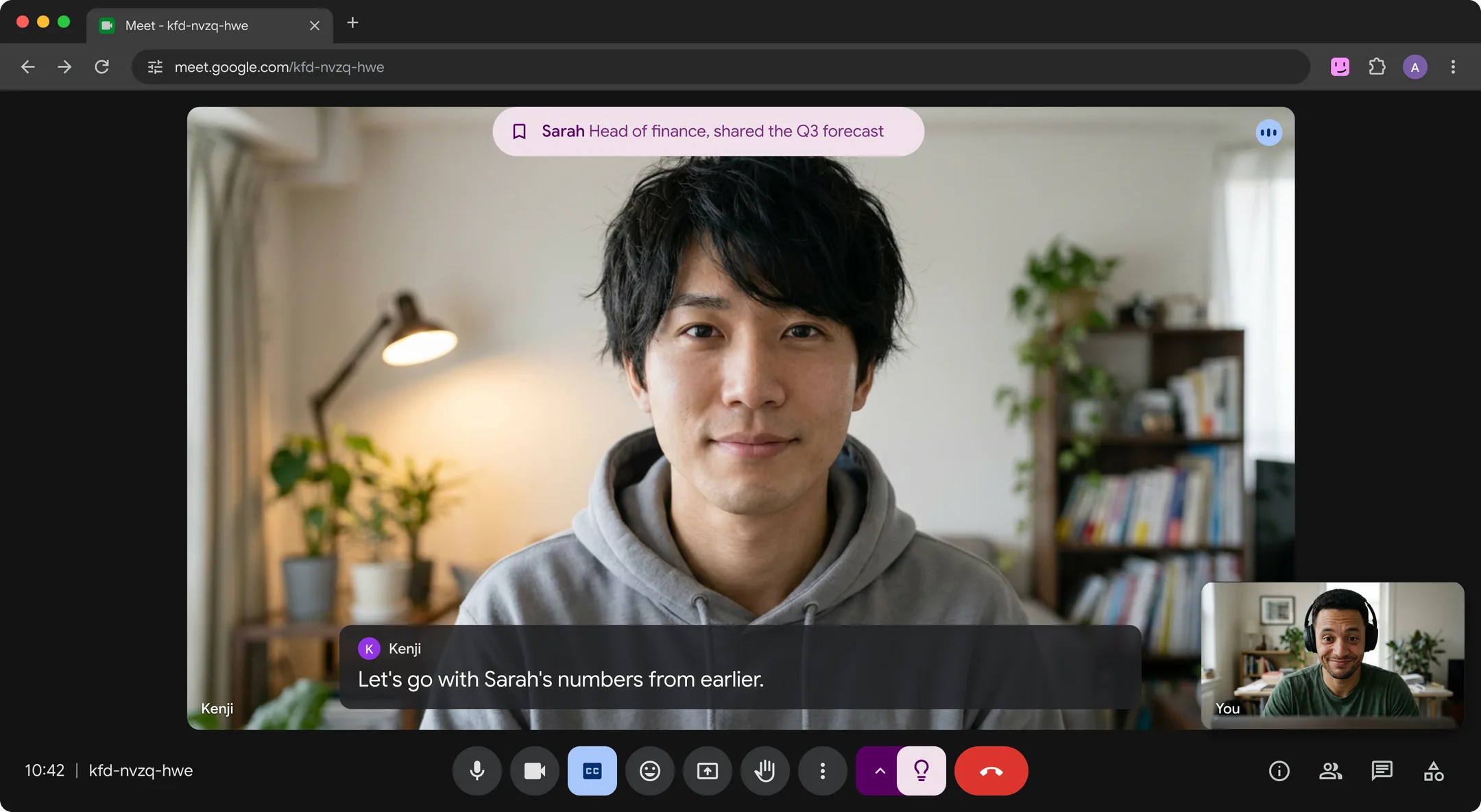
Hintly reads captions even when they're hidden on your screen, so you don't need captions showing in the small window. The cards appear only on your screen, so if you share your entire screen, or a window showing Meet, others see them too. No bot joins the call, nothing is recorded, and Hintly's server doesn't store what's said. Caption text is sent to Hintly's server to write the hints, though, so check your organization's policy before using it on work calls. It's built for calls in English, hints are written by AI and can be wrong, and your first 60 minutes of call time are free.
If you're after something else, such as notes or transcripts, see the roundup of Google Meet Chrome extensions.
FAQ
Does Google Meet picture-in-picture work on Mac?
Yes, in Chrome. Google's requirement is Chrome on a computer, and a Mac counts. It doesn't work in Safari. Current versions of Chrome need macOS 13 Ventura or later, so an older Mac may be stuck on an outdated Chrome.
Does it work in Firefox or Safari?
No. Google's help says Meet's picture-in-picture is only available with Google Chrome on a computer, and it doesn't list Firefox, Safari or Edge. Open the meeting in Chrome to use the floating window.
Can others see that I'm in picture-in-picture?
Google's help doesn't mention any notice to other participants. The floating window is a smaller version of your own Meet screen, and you stay in the meeting with your camera and mic set however you left them.
How do I make the floating window bigger?
Drag any edge of the window to resize it, and drag the top to move it. Google doesn't publish a fixed tile count for today's window. The original 2022 version showed up to four people, and a 2023 update added better resizing and flexible layouts. For the full grid, click Back to tab.