
Best jargon and acronym explainer Chrome extensions
Last updated: October 23, 2026
Jargon turns up in different places: an acronym dropped on a call, a term a conference speaker assumes you know, buzzwords in an all-hands email, frameworks in a job spec. No single jargon Chrome extension covers all of them, so this list is grouped by where the jargon is: spoken in a call, in a video, on web pages and docs, and in technical text. The last pick is for plain everyday words.
If you've ever nodded along to an acronym, you're in good company. Benefit News reports that in a 2024 Adobe Acrobat survey of more than 1,000 people in the US, 45% admitted to pretending to know an acronym rather than asking.
Disclosure: this page is published by Hintly. Details about other tools come from their own store listings, websites and help pages, checked in October 2026.
Quick comparison
| Extension | Where it works | What it explains | Best for |
|---|---|---|---|
| Hintly | Google Meet calls in desktop Chrome | Acronyms, jargon, technical terms and names, a moment after they're said | Following calls full of unfamiliar terms |
| JargonLens | YouTube videos with English captions | Technical, financial and industry terms, plus slang and idioms | Lectures, talks and explainer videos |
| ExplainTXT | Any web page | Whatever you highlight, with follow-up questions | Dense docs, contracts and reports |
| Lucid | Any web page | Needlessly complex wording, explained in context | Learning terms as you read |
| Corporate Jargon Translator | Any web page | A fixed list of 120+ corporate buzzwords | Decoding corporate speak, with a laugh |
| GlossaryTech | Any web page, built for GitHub and candidate profiles | Programming languages, frameworks and tools | Recruiters and non-engineers reading tech text |
| Google Dictionary | Any web page | Everyday words, with a double-click | Plain vocabulary rather than acronyms |
Top pick for meetings
1. Hintly
Hintly is the only extension on this list that works during live calls. It runs on Google Meet in desktop Chrome and adds a toggle beside Meet's Leave call button. Switch it on and it reads the call's live captions, even if you keep them hidden. A moment after someone says an acronym, an industry term, a niche product or a name you might not know, a small card with a short explanation appears near the top of the Meet tab.
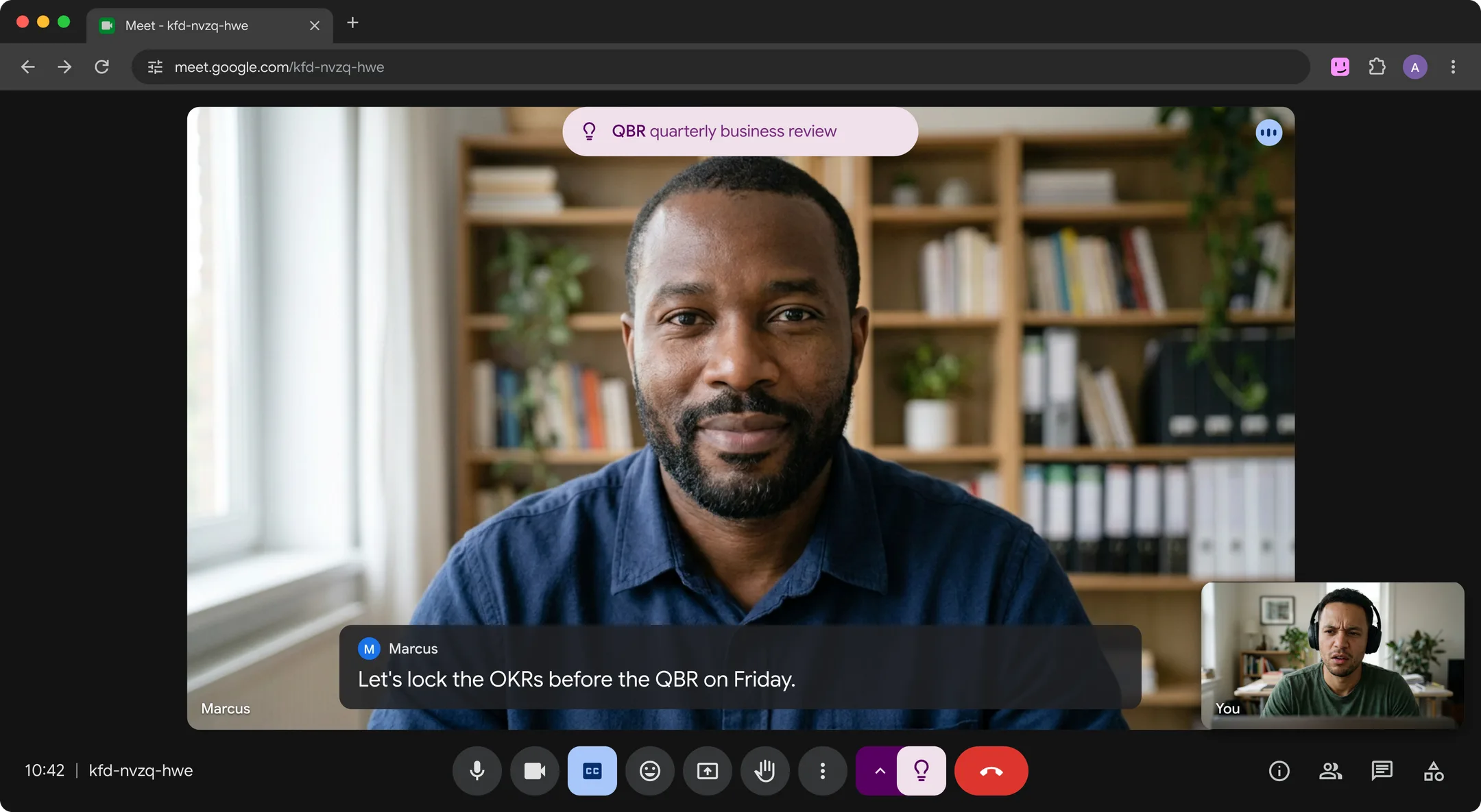
It skips words nearly every adult knows, like Q3, sprint or API, so the cards stay useful. It also names things people describe but can't name, flags facts that are clearly wrong, and reminds you who people and projects are when they come up again in the same call. Cards follow you into Meet's picture-in-picture window when you switch tabs.
Hintly doesn't explain text on web pages, in documents or in YouTube videos: that's what the rest of this list is for. It won't explain idioms like "circle back", it's built for calls in English, and hints are written by AI and can be wrong. No bot joins the call and nothing is recorded.
Key features
- Explains acronyms, jargon, technical and industry terms a moment after they're said
- Names what someone describes, and fact checks clear mistakes
- Who's who reminders within a call, cleared when it ends
- Turns off in one click, and the cards appear only on your screen
- First 60 minutes of call time free, no card needed. Pro is $12 a month for 50 hours of calls
Best for: Google Meet calls full of acronyms and industry terms, when you'd rather not stop to search.
Add to ChromeBest for YouTube videos
2. JargonLens
JargonLens reads the captions of the YouTube video you're watching and shows a plain-English definition of each specialist term as it's spoken. It covers technical, financial, scientific and industry terms, and unlike Hintly it also explains slang and idioms in context. Double-click a definition for more, or open a glossary of every term in the video and jump to the moment each one comes up. It works on public English videos that already have captions.
Key features
- Definitions timed to when each term is spoken
- A searchable glossary for the current video, with timestamps
- Mark terms as known to hide them
Best for: lectures, conference talks and explainer videos in a field you're new to.
View on Chrome Web StoreBest for docs and long reads
3. ExplainTXT
For written jargon you can select, ExplainTXT is the most flexible tool here. Highlight text on any page and press Cmd+Shift+E (Ctrl+Shift+E on Windows), and a plain-language explanation opens in a sidebar. Because the sidebar takes follow-up questions, it works as an AI acronym decoder: ask what an acronym means in this particular document, not just in general.
Key features
- Explains highlighted text from a shortcut or its menu
- Follow-up questions in a sidebar
- Free plan with 10 reads a day, and a Pro plan with 100
Best for: dense passages in docs, contracts and reports.
View on Chrome Web StoreBest for learning terms as you read
4. Lucid
Lucid calls itself a jargon linter. As you browse, it flags unclear or overly complex language and explains it inline, using the surrounding text so the explanation fits. Its listing defines jargon narrowly, as wording where a simpler word would do, so it's better at decoding inflated prose than at spelling out industry acronyms. Words you look up are saved to a personal lexicon.
Key features
- Flags complex or unclear wording on any page
- Explanations that use the surrounding text, with nothing rewritten
- Free daily use with an account, or Pro for $5 a month
Best for: reports, policy pages and academic writing that's harder to read than it needs to be.
View on Chrome Web StoreBest for corporate buzzwords
5. Corporate Jargon Translator
Corporate Jargon Translator is the lighthearted pick. It underlines more than 120 buzzwords and phrases on any page, such as "synergize", "circle back" and "low-hanging fruit", and shows a plain-English translation when you hover. The translations are written for laughs as much as accuracy and the word list is fixed, so it won't help with acronyms or technical terms.
Key features
- Hover tooltips, or a Replace mode that swaps buzzwords inline
- A Jargon Score, from "Mostly human" to "This page is a LinkedIn post"
- Runs locally, with no data collection
Best for: corporate blogs, LinkedIn posts and all-hands emails, when you want a translation and a smile.
View on Chrome Web StoreBest for tech terms
6. GlossaryTech
GlossaryTech, backed by Dice, is a glossary Chrome extension for recruiters who read technical profiles without a technical background. On any page, including GitHub, Stack Overflow and candidate profiles, it highlights tech terms automatically and defines each one, with related technologies and color-coded categories like front end, back end and QA. It draws on a glossary of more than 2,500 terms. Pick it when the jargon is in a README or a job spec, not a sales deck.
Key features
- Automatic highlighting of tech terms on any page
- Short definitions plus related technologies
- Free to install
Best for: recruiters, PMs and anyone reading engineering job specs or code repositories. If the tech talk is on a call instead, see how to follow engineering meetings as a non-technical PM.
View on Chrome Web StoreBest for everyday words
7. Google Dictionary
Sometimes the confusing word isn't jargon at all. Google Dictionary, made by Google, shows a definition in a small bubble when you double-click a word on a page, with fuller definitions from the toolbar. It's a dictionary built for everyday vocabulary, so pair it with one of the tools above for acronyms and industry shorthand.
Key features
- Double-click a word for a pop-up definition
- Optional lookup history, exportable as CSV
- 18 dictionaries across 16 languages
Best for: unfamiliar everyday words in articles and emails.
View on Chrome Web StoreNone of them know your company's internal acronyms
Every tool here works from public knowledge: a dictionary, a fixed word list, or an AI model trained on the web. None of their listings mention a way to add your own team's terms. That matters, because the acronyms that confuse new joiners most are often internal: a project codename, a team's name for its weekly review, a process someone shortened years ago.
An AI explainer may still offer a meaning for these, and a confident wrong answer is worse than none. Hintly doesn't guess at company codenames unless someone on the call explains them, which avoids confident wrong guesses but means those terms get no card.
The fix is low-tech: a shared team glossary, kept somewhere people already look, does what no jargon buster tool can. If your team doesn't have one, start it with the terms you've collected. For a plan, see how to keep up with acronyms at work, and for what to do when a term catches you out mid-call, how to understand jargon in meetings.
FAQ
Is there an extension that explains acronyms?
Yes. Which acronym Chrome extension to use depends on where the acronym is. On a web page, highlight it and use ExplainTXT. In a YouTube video, JargonLens defines terms as they're spoken. On a Google Meet call, Hintly spells out acronyms a moment after they're said. For a one-off lookup without installing anything, the Acronym Finder website lists the possible meanings of an acronym, with filters by field.
Is there one that works during calls?
Hintly works during Google Meet calls in desktop Chrome 116 or later. Your first 60 minutes of call time are free, then Pro is $12 a month for 50 hours of calls. It doesn't cover Zoom, Microsoft Teams or the Meet mobile app. For those, see the real-time AI meeting assistants. On eligible paid Google Workspace plans, Ask Gemini in Meet can also answer questions you type. See Hintly vs Ask Gemini in Google Meet for how they compare.
Do these extensions read my pages?
Mostly, yes, because that's how they find terms. ExplainTXT, Lucid, Corporate Jargon Translator, GlossaryTech and Google Dictionary run on every site you visit. JargonLens runs only on YouTube. Hintly runs only on Google Meet, and only reads captions while you have it switched on.
What leaves your browser differs. Corporate Jargon Translator says nothing is sent anywhere. ExplainTXT sends text you highlight to its servers and Google's Gemini API, and keeps it in your history while your account is active. Lucid sends your selection and its context to OpenAI. JargonLens sends the video's details to its backend, which uses Gemini and doesn't keep full transcripts. GlossaryTech's listing says it handles website content, web history and location. Hintly sends caption text to its server and AI models to write hints, and the server doesn't store it. Because Hintly processes what everyone on the call says, check your organization's policy before using it on work calls.