
Can others see your captions in Google Meet?
Last updated: October 23, 2026
No. Google's help says that when you turn on live captions in Google Meet, "the captions are turned on only for you." Turning them on doesn't turn them on for anyone else in the call.
Google's captions help pages also don't mention any alert to the host or other participants when you switch captions on. Some other Meet features are a different story: recordings (which can include captions), transcripts, "Take notes for me" and Ask Gemini all show something to everyone. This guide covers which is which, how to use captions, and what to try when they don't appear. Steps and labels follow Google's Meet help pages, checked in October 2026.
How to turn captions on and off
On a computer
- Go to Google Meet and join a meeting.
- At the bottom, hover over Captions and translation.
- Click Turn on captions.
The keyboard is quicker. Google says you can turn captions on or off by pressing c or Shift + c.
You can also use settings. Click More options > Settings > Captions, and under "Captions," enable or disable Turn on to see captions as people speak.
On Android, iPhone and iPad
- In Google Meet, tap the screen so the call controls appear.
- At the bottom right, tap More.
- Tap Show captions or Hide captions.
Google's phone and tablet instructions carry the same line: the captions are turned on only for you.
What other people can see
Your captions stay on your screen. The features below are different: each one either shows a notice to the people in the call or creates something others can open later.
Recordings with captions
When someone records a meeting, Google says participants get a notification when the recording starts or stops. The person recording can choose a caption language as they start, and Google's help says to select Record captions to embed captions in the clip. So captions in a recording come from that choice, not from your personal caption setting.
Recordings are saved in the meeting organizer's Google Drive, in the "Google Meet" folder, and an email with the link goes to the organizer and the person who started the recording. Recording needs an eligible plan: many paid Workspace editions, Workspace Individual, or Google One with 2 TB or more storage. Details are on Google's recording help page.
Transcripts
A transcript is a written record of the spoken words, saved as a file. To start one, click Meeting tools > Transcribe > Start transcription, then Start. Google says that when meeting transcripts are on, "a Transcripts icon displays for everyone in the meeting."
Transcripts are saved in the organizer's Drive in the "Google Meet" folder. After the meeting, an email with a link goes to the host, any co-hosts and the person who turned on Transcripts. Only spoken words are included, and Google lists eight transcript languages, including English, French, German and Spanish. Transcripts need Business Standard, Business Plus, an Enterprise edition, Workspace Individual or certain Education plans. See Use Transcripts with Google Meet.
Take notes for me and Ask Gemini
"Take notes for me" has Gemini write meeting notes in Google Docs. Google says Meet "informs all meeting participants that notes are being taken and the pencil icon appears on all participants' screens." The notes doc is saved in the organizer's Drive. It needs an eligible Workspace edition or Google AI plan, per Google's notes help page.
Ask Gemini answers questions you type during a meeting, such as a recap of what someone said. Google says your questions and its answers are private to you, but everyone in a meeting with Ask Gemini enabled "will be shown a consent banner in the meeting." It refers to the meeting's captions to answer, and Google says no caption data is stored after the meeting ends. It needs an eligible Workspace subscription, and hosts can turn it off for everyone. See Ask Gemini in Google Meet, or the Hintly vs Ask Gemini comparison.
On a work or school account, your admin may also require everyone to give explicit consent before "Take notes for me," Record or Transcribe can run. Google says this setting is off by default. When it's on, you'll see buttons such as Start, Join, Continue or Leave.
Caption language, history and style
- Language. On a computer, select the drop-down on the left of the caption tray to change the captions language. Google lists dozens of caption languages, many marked beta.
- Scroll back. With captions on, you can scroll up or down to review earlier parts of the conversation. Google notes that captions only display for the parts where you're in the meeting and have captions turned on, so switching them on late won't fill in what you missed.
- Style. Click More options > Settings > Captions. Under "Customize your captions," choose the font, font size, font color and background color. There's a Reset button too, and Google says your settings are saved automatically.
Translated captions
Translated captions turn speech in one language into captions in another. Google says they're only available on these Workspace editions: Business Standard, Business Plus, Enterprise Standard, Enterprise Plus and Google AI Pro for Education. A personal Google account isn't on Google's list.
To turn them on, hover over Captions and translation > Turn on captions, then in the drop-down menu on the left, select Translated captions. Or go to More options > Settings > Captions, select Translated captions under "Language," and pick the "Translate from" and "Translate to" languages.
If translated captions aren't working, check your edition first. Google also says translated captions "are gradually rolling out" and may not be available yet in every language, and some languages are in beta, so quality can vary.
Captions not showing? Try these fixes
- They're switched off. The c shortcut turns captions on and off, so a stray key press can hide them. Press it again, or check Turn on to see captions as people speak in Settings > Captions.
- You're on a phone. Tap the screen so the call controls appear, then tap More > Show captions.
- The words look wrong. Check that the captions language matches the language being spoken, using the drop-down on the left of the caption tray.
- Earlier captions are missing. Captions only cover the time you were in the meeting with captions on.
- A recording has no captions. The person recording has to select a caption language or Record captions. In Google Drive, captions can become playable a few hours after the recording file is ready.
Captions vs transcripts vs notes
| Feature | What others see | Saved after the call | Who can use it |
|---|---|---|---|
| Live captions | Google says they're turned on only for you | Not on their own; you can scroll back during the call | All users |
| Recording with captions | A notification when recording starts or stops | Video in the organizer's Drive, with captions if selected | Eligible Workspace editions, Workspace Individual, Google One 2 TB or more |
| Transcripts | A Transcripts icon for everyone | Transcript in the organizer's Drive | Business Standard and Plus, Enterprise, Workspace Individual, some Education plans |
| "Take notes for me" | A notice and a pencil icon on everyone's screen | Notes doc in the organizer's Drive | Eligible Workspace editions or Google AI plans |
| Ask Gemini | A consent banner; your questions stay private | Your prompts and responses in your Conversation History | Eligible Workspace subscriptions |
Where Hintly fits
If you switch captions on to catch terms and acronyms you didn't quite get, Hintly can go a step further. It's a Chrome extension for Google Meet in desktop Chrome. While it's on, it reads the call's live captions from Meet, even when the captions are hidden on your screen, and shows small cards near the top of the Meet tab that explain jargon, acronyms and unfamiliar names a moment after they're said.
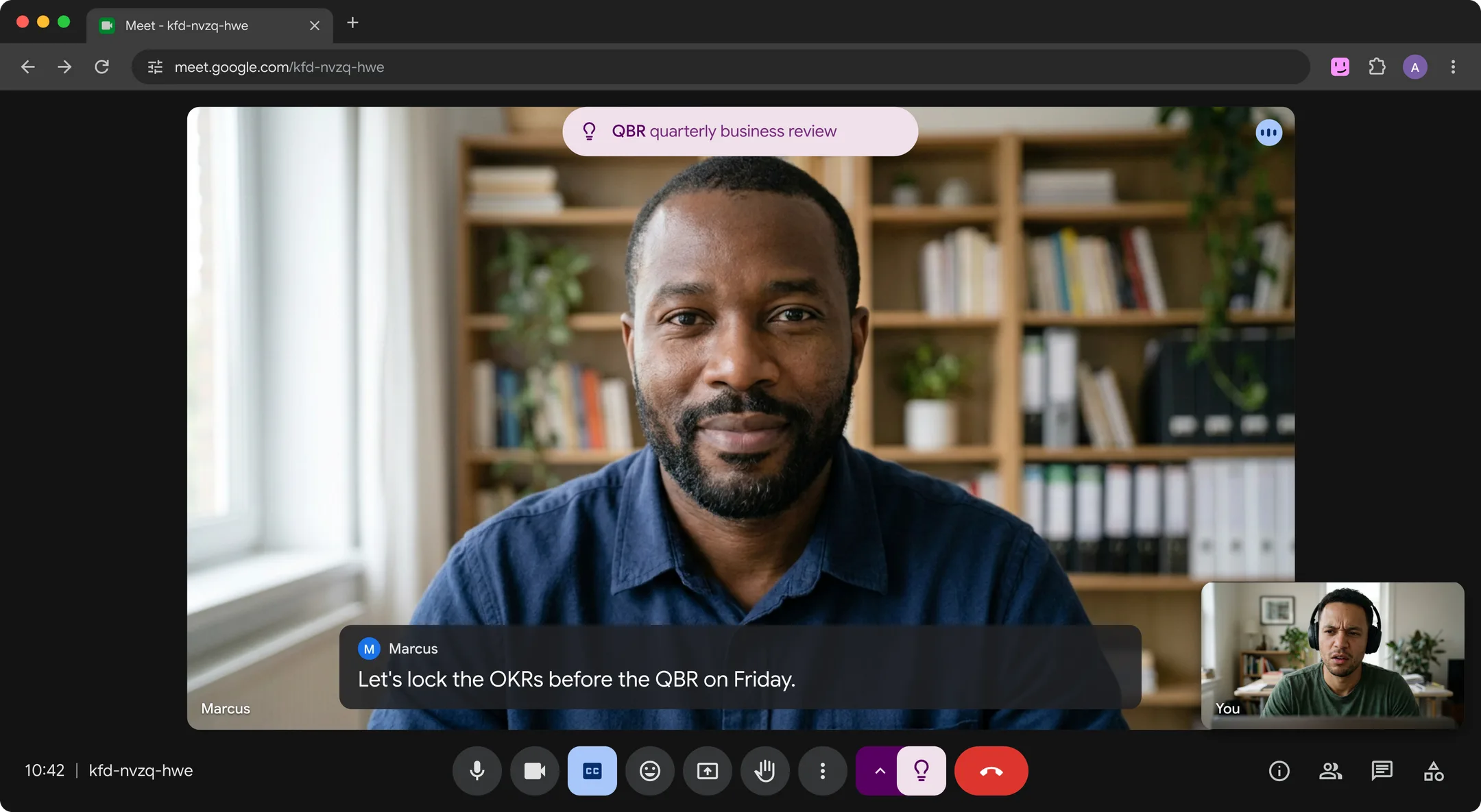
The cards appear only on your screen, and no bot joins the call. If you share your entire screen, or a window showing Meet, others see the cards too. Hintly doesn't record audio or save captions, transcripts or notes, and Hintly's server doesn't store what's said. If you need a saved record, use Meet's transcripts or a note taker from the roundup of Google Meet AI assistants.
Caption text is sent to Hintly's server and AI models to write the hints, so the people on your call are being processed: check your organization's policy before using it on work calls. Hintly is built for calls in English and doesn't translate, hints are written by AI and can be wrong, and your first 60 minutes of call time are free. For more on following fast-moving calls, see how to understand jargon in meetings.
FAQ
Can the host see if I turn on captions?
Google says captions you turn on are "turned on only for you," and its captions help doesn't describe any notice to the host. The features that do show a notice to everyone are recording, transcripts, "Take notes for me" and Ask Gemini.
Do captions get saved?
Not on their own. You can scroll back through captions during the call, but Google's captions help doesn't describe saving them. To keep the words, someone has to record the meeting with captions or turn on Transcripts. Both are saved to the organizer's Google Drive and need an eligible plan.
Can I turn on captions for everyone?
Google's help doesn't describe a way to switch captions on for other people. Each person turns them on with Captions and translation or the c key. If everyone needs the words afterward, a transcript or a recording with captions is the shared option.
Does Hintly need captions turned on?
No. While Hintly is on, it gets the call's captions from Meet itself, so you can keep Meet's captions hidden on your screen. Hintly's toggle sits beside the Leave call button, is on by default once you sign in and remembers your choice. While it's off, it requests nothing and no caption text leaves the browser.