
Best Chrome extensions for Google Meet
Last updated: October 23, 2026
Google Meet already does a lot on its own: grid view, live captions, reactions, hold the space bar to talk, and a picture-in-picture window in Chrome. Eligible paid Google Workspace plans add transcripts, attendance reports and Gemini note taking. So the extensions worth installing in 2026 are the ones that add something Meet doesn't, or bring a paid-plan feature to everyone else.
The picks below are grouped by the job they do. Most people only need one or two. For AI tools specifically, including note takers that join as a bot, see the best Google Meet AI assistants.
Disclosure: this page is published by Hintly. Details about other tools come from their own store listings, websites and help pages, checked in October 2026.
Quick comparison
| Extension | What it adds | Best for |
|---|---|---|
| Hintly | Short explanations of jargon, acronyms, names and references a moment after they're said, shown only on your screen | Following calls full of unfamiliar terms |
| Tactiq | A live transcript in your browser, then AI summaries and action items | Transcripts and notes without a bot |
| Scribbl | A video recording, transcript and meeting minutes, with no bot in the call | Recording calls you don't host |
| TranscripTonic | Saves Meet's captions and chat as a text file, open source | A free transcript that stays on your computer |
| Google Meet Enhancement Suite | Auto mute on join, auto admit, quick leave and dozens of other controls | People who spend all day in Meet |
| Google Meet Attendance List | An automatic attendance list with join times, time in call and export | Teachers and meeting organizers |
| Meet Time Out | A countdown to the meeting's scheduled end, synced with Google Calendar | Keeping meetings on time |
Top pick for live explanations
1. Hintly
Hintly is the only extension on this list that explains what's being said while the call is happening. It adds a toggle beside Meet's Leave call button. Switch it on, and a moment after someone mentions an unfamiliar term, acronym, product, person or place, a small card with a short explanation appears near the top of your Meet tab.
It also names things people describe but can't name ("that yellow app with the ghost" is Snapchat), corrects facts that are clearly wrong, and reminds you who's who when someone from earlier in the call comes up again. It skips what nearly every adult knows, like Excel or a sprint, so the cards stay useful. They also appear in Meet's picture-in-picture window, so they follow you when you switch tabs.
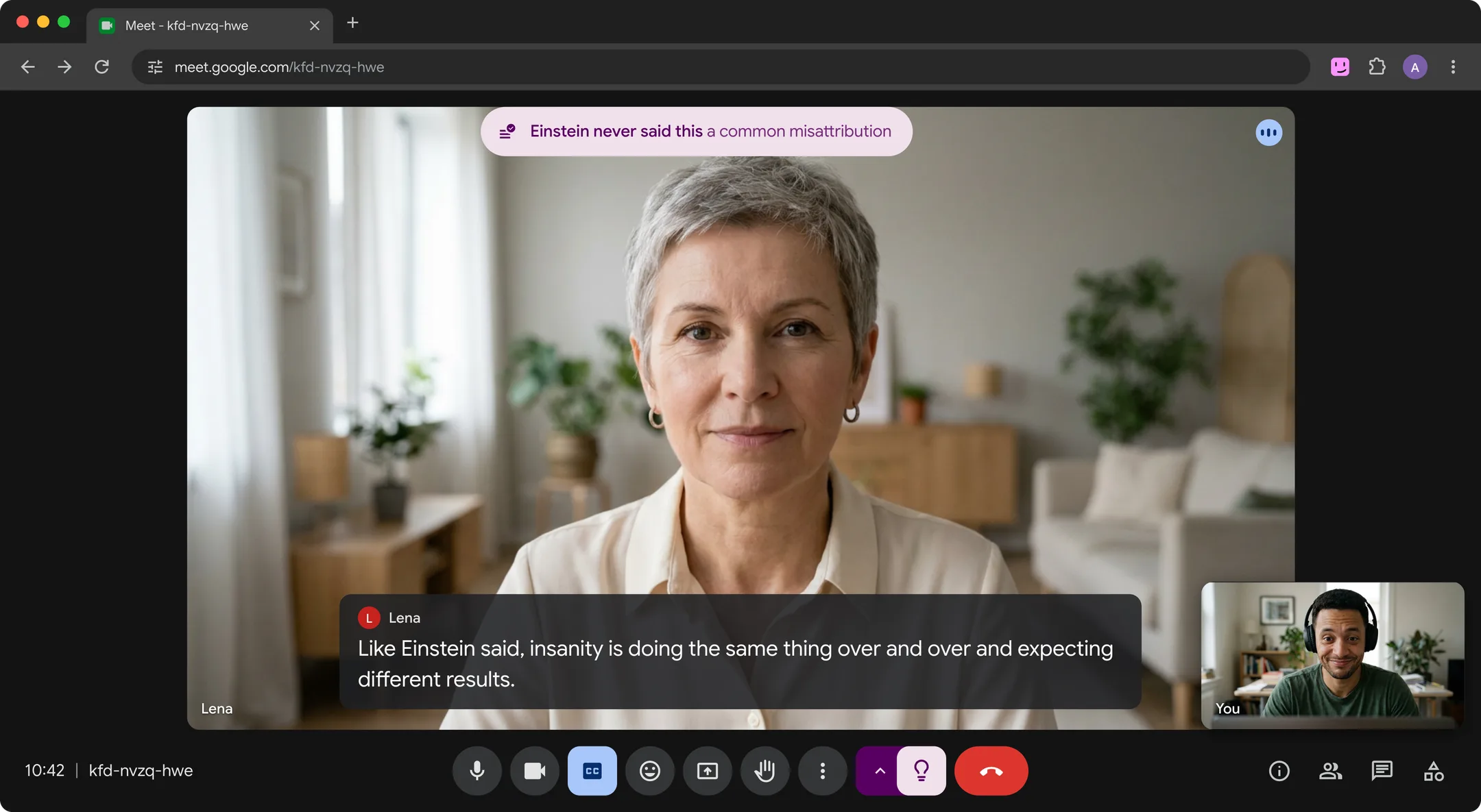
Hintly doesn't record audio, save transcripts or write summaries, and no bot joins the call. It reads Meet's live captions and sends the text to Hintly's server and AI models to write hints, and the server doesn't store what's said. Hints are written by AI and can be wrong. It's built for calls in English in desktop Chrome 116 or later.
Key features
- Explanations of jargon, acronyms, technical terms, niche products, notable people and lesser-known places
- Names what someone describes, and fact checks clear mistakes
- Who's who reminders within a call, cleared when it ends
- "For you" cards when someone asks you to do something
- Turns off in one click, and the cards appear only on your screen
- First 60 minutes of call time free, no card needed. Pro is $12 a month for 50 hours of calls
Best for: following calls full of unfamiliar terms, names and acronyms without stopping to search. For notes or a transcript, run it alongside Tactiq or Scribbl.
Add to ChromeBest for transcripts and AI notes
2. Tactiq
Tactiq is a transcript-first note taker that runs in your browser. Join a Meet call and it starts a live transcript with speaker labels and timestamps, with no bot and no recording. When the call ends, it writes a summary, action items and key takeaways.
Afterwards you can search every transcript, ask its AI about a meeting and get answers with the source quote, or export to Google Docs, Notion, Word or PDF. The free plan covers 10 transcripts a month, and paid plans add more. Tactiq keeps the record and Hintly helps you follow along in the moment, so it's fine to run both.
Key features
- Live transcript in Google Meet, Zoom and Microsoft Teams, with no bot
- AI summaries, action items and key takeaways after the call
- Highlights and task tags during the call
- Questions about past meetings, answered with the source quote
- Export to Google Docs, Notion, Word or PDF
Best for: a searchable transcript and AI notes from every call, without adding a bot.
View on Chrome Web StoreBest for recording without a bot
3. Scribbl
Scribbl adds video. It records the Meet calls you join through its Chrome extension, so nothing appears in the participant list and nobody has to admit a bot. When the call ends you get the recording, a transcript with speaker names, and minutes with a summary, decisions and action items.
It's handy when Meet's own recording isn't available to you, for example on a personal Gmail account or a call you don't host. Scribbl's listing asks you to let everyone know you're recording, which is good advice. The free plan includes 10 meetings a month.
Key features
- Records calls you join, including on personal Gmail accounts and when you're not the host
- Searchable transcript with speaker names
- Minutes from a template or your own format
- No bot, and its Mac and Windows desktop app also covers Zoom and Microsoft Teams
- Connects your meetings to Claude or ChatGPT on paid plans
Best for: keeping a video recording and notes of calls where Meet's own recording isn't an option.
View on Chrome Web StoreBest free captions saver
4. TranscripTonic
If you just want a plain transcript, TranscripTonic is a small, open-source extension that saves Meet's live captions and chat messages as a text file after each meeting. Processing and storage happen in your browser, and apart from anonymous error reports and download timestamps, nothing is sent anywhere unless you set up a webhook.
It's a useful stand-in for Meet's built-in transcripts, which only come with certain paid Workspace plans. Because it builds on Meet's captions, the transcript is only as accurate as they are.
Key features
- Saves captions and chat as a text file after each meeting
- Auto mode for every meeting, or manual mode when you need it
- Webhooks to send transcripts to other tools
- Open source under the MIT license
Best for: a free Meet transcript that stays on your computer, with no AI attached.
View on Chrome Web StoreBest for meeting controls
5. Google Meet Enhancement Suite
Google Meet Enhancement Suite bundles more than 40 tweaks for people who spend their day in Meet. The free basic features handle repeated chores: mute your mic and turn off your camera when you join, skip the join screen, leave with a shortcut, and switch captions on automatically.
Meet Pro, $5 a month for a single license when billed yearly, adds auto admit, a meeting timer, attendance export and AI transcripts. A few features overlap with things Meet now does natively, like picture-in-picture and holding the space bar to talk, so check what you need before paying.
Key features
- Auto mute and camera off when you join
- Auto join, quick leave and leave confirmation
- Push to talk, with a custom hotkey in Pro
- Auto admit or auto deny new entrants (Pro)
- Speaker highlight and a do-not-disturb mode (Pro)
Best for: heavy Meet users and hosts who want to stop repeating the same clicks on every call.
View on Chrome Web StoreBest for attendance
6. Google Meet Attendance List
Meet's own attendance reports only come with certain Workspace editions, such as Business Plus, Enterprise and Education Plus, and go to the organizer by email after the call. If your plan doesn't include them, Google Meet Attendance List builds the list in your browser while the call runs.
For each participant it tracks when they were first seen, how long they stayed and how long they spoke. The listing says the data is stored locally and never leaves your device.
Key features
- Automatic attendance list, with an option to save manually
- First seen time, time in call and speaking time per person
- Export to CSV, XLSX or PDF
- Dashboard of past meetings
Best for: teachers and organizers who need attendance records on a plan without Meet's own reports.
View on Chrome Web StoreBest call timer
7. Meet Time Out
Meet Time Out adds a timer to Meet's control bar that syncs with Google Calendar and counts down to the meeting's scheduled end. If the meeting runs over, it turns red and counts the overtime. It needs read-only access to your calendar.
If you'd rather not grant that, Call Timer for Meet is simpler: it counts up from when you join, can alert you at a time limit you set, and says it doesn't collect personal data.
Key features
- Countdown to the scheduled end, synced with Google Calendar
- Overtime clock when a meeting runs long
- Amber and red warnings at 10 and 5 minutes left
- Panel with upcoming meetings and conflicts
Best for: anyone with back-to-back meetings who wants to finish on time.
View on Chrome Web StoreChrome extensions vs Google Meet add-ons
Searches for Google Meet extensions also turn up Google Meet add-ons, which are a different thing.
Chrome extensions install from the Chrome Web Store and run in Chrome on your computer. They can add buttons to Meet and read what's on the page, and only the person who installed one gets its features. Everything on this page is a Chrome extension.
Meet add-ons install from the Google Workspace Marketplace and open from Meet's Tools panel (older guides call it Activities), running inside Meet itself. By default any participant can start an add-on activity and others can join in, some add-ons work on mobile, and Workspace admins can pre-install or block them. Google's help page on Meet add-ons has the details.
In short: pick an add-on for something the whole call does together, and an extension for something that helps you personally.
FAQ
Are Google Meet extensions safe?
Most are fine, but an extension that runs on Meet can usually read what's on the page, including names, chat and captions. Before installing, check the permissions Chrome shows, the privacy section of the Chrome Web Store listing, and when it was last updated. Prefer extensions that only ask for access to Meet rather than every site, and remove ones you no longer use.
Do Google Meet extensions work in the Meet mobile app?
No. Chrome extensions run in Chrome on a computer, so they don't work in the Google Meet app on a phone or tablet. Hintly needs desktop Chrome 116 or later. On mobile, look at Meet add-ons that support it, or a tool's own app.
Can other people on the call see my extensions?
It depends. Hintly's cards only appear on your screen, and no bot joins the call. If you share your entire screen, or a window showing Meet, others see the cards too. Tactiq, Scribbl and TranscripTonic also run without adding a participant, but they capture what others say, so tell people when you're transcribing or recording. Note takers that send a bot are different: the bot shows up in the participant list and usually has to be admitted. Controls like auto admit change what happens for everyone, even though nobody sees the extension.
Hintly processes what everyone on the call says to write hints, so check your organization's policy before using it on work calls.
Which extension explains jargon during a call?
Hintly. It's the one extension here built to explain terms, acronyms, names and references while the call is happening, without you having to ask. On eligible paid Workspace plans, Ask Gemini in Meet can also answer questions you type, like asking it to catch you up. See Hintly vs Ask Gemini in Google Meet for how they compare, and the guide to understanding jargon in meetings for other ways to keep up.