
Best real-time AI meeting assistants
Last updated: October 23, 2026
Most tools sold as AI meeting assistants are note takers. They join the call, transcribe it and send a summary when it ends. That's useful for the record, but it does nothing for you when someone mentions a term you've never heard and the conversation has already moved on.
This list is about help during the call. "Real-time" covers a few different jobs, so the picks are grouped by the kind of help they give.
Disclosure: this page is published by Hintly. Details about other tools come from their own store listings, websites and help pages, checked in October 2026.
The kinds of real-time help
- Explanations, unprompted. The tool explains terms, names and facts as they come up. You don't type anything.
- Answers when you ask. You type a question, like "what did Priya say about the budget?", and get an answer from the conversation so far.
- Coaching and cues. Talking points, questions to ask and reminders of what to cover, often built for sales calls.
- Memory and suggestions. An assistant that captures your meetings over time and brings back earlier context.
- Help in person. Cues for conversations across a table, not on a screen.
Quick comparison
| Tool | Kind of live help | Where it works | Joins as a bot? |
|---|---|---|---|
| Hintly | Explains terms, names and facts unprompted | Google Meet in desktop Chrome | No |
| Ask Gemini in Google Meet | Answers questions you type | Google Meet, on eligible Workspace plans | No, it's built into Meet |
| Fireflies Live Assist | Live notes, prompts and typed answers | Google Meet in Chrome, through the extension | No, in the extension version |
| Copilot in Microsoft Teams | Answers questions you type | Teams meetings, with a Copilot license | No, it's built into Teams |
| Otter Live Assist | Sales coaching tip cards | Zoom, Meet, Teams and the Otter desktop app | Joins your calls, per Otter |
| Hedy | Coaching: talking points and questions | Desktop, mobile and web apps, online or in person | No |
| TwinMind | Answers from memory, suggestions | Mobile and desktop apps, Chrome extension | No |
| Even Realities G2 with Conversate | Cues in the lens | In person, on G2 glasses with a phone | No |
Top pick for Google Meet
1. Hintly
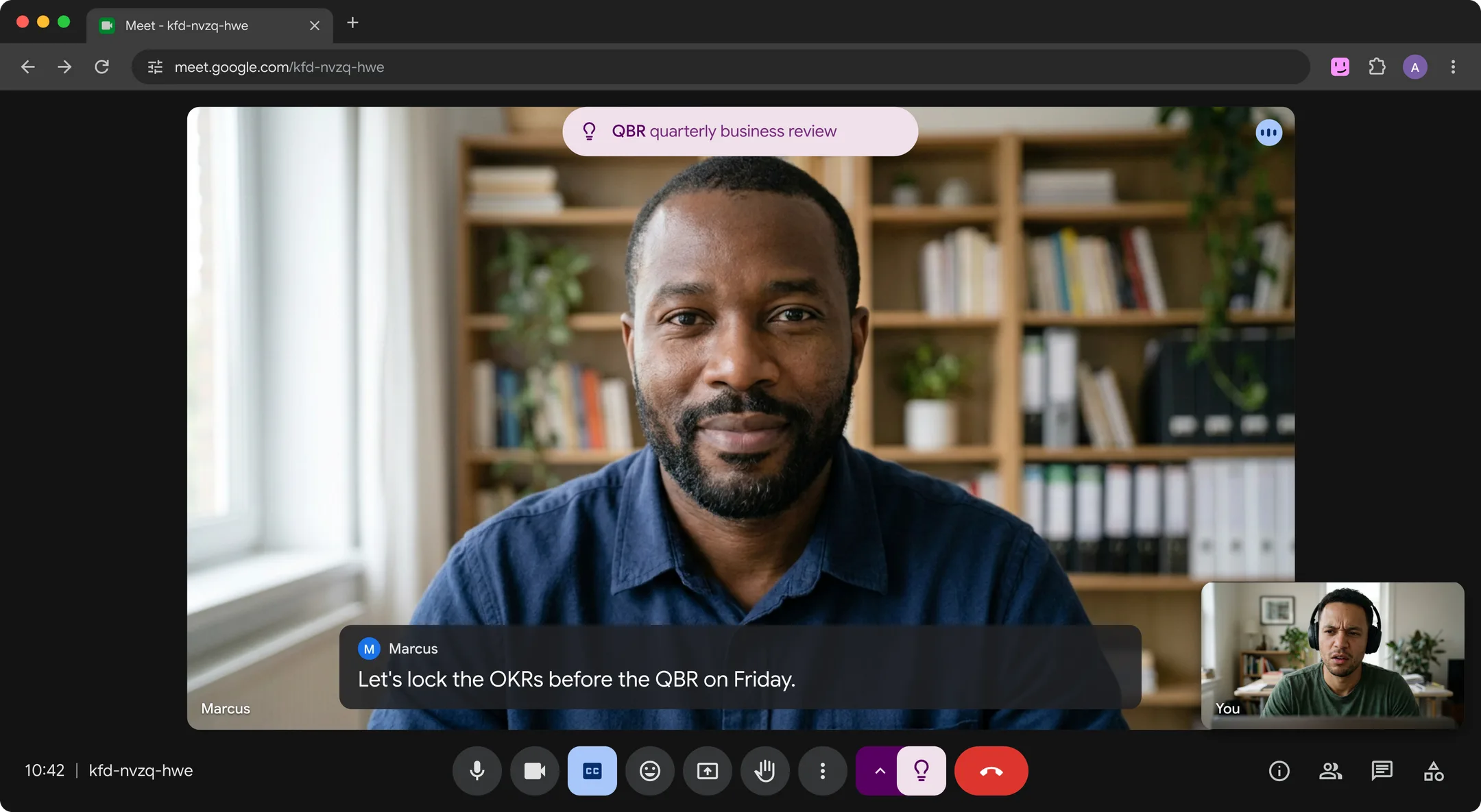
Hintly is a Chrome extension for Google Meet that explains things as they come up, without you asking. Turn it on with the toggle beside Meet's Leave call button. It reads the call's live captions, even when they're hidden on your screen, and a moment after a term is spoken, a small card appears near the top of the tab with a short explanation. It skips everyday apps and common work words like Excel or Q3, so the cards you see are for things you'd otherwise look up later.
Key features
- Hints for jargon, acronyms, technical and industry terms, niche companies, notable people and lesser-known places and events
- Names what's described: "that yellow app with the ghost" gets a card for Snapchat
- Fact checks when someone gets a fact clearly wrong, like a wrong year
- Reminders of people and projects mentioned earlier in the same call, cleared when it ends
- "For you" cards when someone asks you to do something
- Cards follow you into Meet's Picture-in-Picture window when you switch tabs
- The cards appear only on your screen. No bot, no recording, and Hintly's server doesn't store what's said
The limits: it works on Google Meet in desktop Chrome only, not Zoom, Teams or mobile. It's built for calls in English and doesn't translate or write notes. Hints are written by AI and can be wrong. Your first 60 minutes of call time are free with no card, and Pro is $12 a month for 50 hours of calls.
Best for Google Meet calls full of terms, acronyms and names you don't know, when you want an explanation without stopping to ask.
Add to ChromeAnswers when you ask
2. Ask Gemini in Google Meet
Ask Gemini is built into Google Meet for eligible Google Workspace plans. You type into the Ask Gemini box at the bottom left of the call, and it answers privately from the meeting's captions, your Workspace files and the web. It starts once two people have joined, participants see a notice that it's on, and hosts and admins can turn it off. Because it answers when you ask, catching a term means typing a question while the call carries on. Hintly vs Ask Gemini covers how the two differ, and they can run side by side.
Key features
- Summaries of the discussion so far, with decisions and action items
- Recaps of what a specific person said
- Catch-up for late joiners when Take notes for me is on
- No recording, and caption data isn't kept after the meeting
- Needs an eligible Workspace edition: Business Standard or Plus, Enterprise Standard or Plus, or the Google AI Pro for Education add-on
Best for Workspace users who want to ask about the meeting while it's still going, without adding another tool.
Visit WebsiteAnswers and live notes
3. Fireflies Live Assist
Fireflies is best known as a note taker, and Live Assist is its during-the-call side. With the Fireflies Chrome extension, a Live Assist pane opens inside Google Meet without the notetaker bot joining. It shows live AI notes and a transcript, plus one-click prompts to suggest questions, catch up on the last minute, summarize so far or list action items. Fireflies says this extension version works only on Google Meet. After the call, the meeting is saved to your Fireflies account.
Key features
- Live notes and a transcript with speaker names
- Quick prompts, including suggested questions
- AskFred for typed questions and web searches, using AI credits
- Topic suggestions that update as the call moves, on paid plans
Best for Google Meet users who want live notes, with answers and question ideas on demand.
Visit WebsiteAnswers when you ask in Teams
4. Copilot in Microsoft Teams
For Microsoft Teams, Copilot fills a similar role to Ask Gemini. People with an add-on Microsoft Copilot license can open it during a meeting and ask questions only they see. Organizers choose "During and after the meeting", which needs transcription, "Only during the meeting", which uses temporary speech-to-text data, or Off. Microsoft's admin docs say the default policy requires a saved transcript, so in many organizations Copilot only works once someone starts transcription.
Key features
- Who said what, where people agree or disagree, and suggested follow-up tasks
- Private prompts and answers during the meeting
- Not available in end-to-end encrypted meetings or meetings hosted outside your organization
Best for Teams users whose organization already pays for Copilot.
Visit WebsiteCoaching for sales teams
5. Otter Live Assist
Otter launched Live Assist in July 2026 as a coaching agent for calls. It joins calls on Zoom, Google Meet and Microsoft Teams, or runs in the Otter desktop app, and shows tip cards only you see: what to ask next, what still needs covering, or the exact talk track to use. Teams build their coaches with Otter's Agent Builder from their own playbooks and past meetings. It's available on Otter Enterprise only, so it's a team purchase rather than something you add for yourself.
Key features
- Private tip cards with questions, topics and talk tracks
- Objectives you check off as the call covers them
- Custom coaches grounded in your playbooks and SOPs
Best for sales and customer teams on Otter Enterprise who want every rep coached from the same playbook.
Visit WebsiteCoaching on any device
6. Hedy
Hedy is a meeting coach for individuals. It transcribes the conversation and suggests talking points, questions you haven't asked and moments worth coming back to. Its Mac and Windows apps capture both sides of Zoom, Teams, Google Meet and other calls, and its iPhone, Android and Apple Watch apps cover in-person meetings: put your phone on the table and it listens to the room. No bot joins. The free plan includes live coaching for the first 30 minutes of each session, up to 5 hours a month. Pro is $12.99 a month or $99.99 a year.
Key features
- Suggested talking points and questions during the conversation
- Works with any call app on desktop, and in person on mobile
- Notes, highlights and action items after each session
Best for general coaching on steering a conversation, across online calls and in-person meetings.
Visit WebsiteMemory and suggestions
7. TwinMind
TwinMind calls itself an AI second brain. It transcribes your meetings and conversations and organizes them into people, places and projects. It runs on iPhone, Android, Mac, Windows and Apple Watch, and its Chrome extension adds a sidebar that transcribes browser meetings without a bot. While it's capturing, you can ask for answers drawn from the conversation, search past meetings and get suggestions based on what it remembers. There's a free plan, and Pro is $11.99 a month billed yearly, or $14.99 billed monthly.
Key features
- Answers drawn from the conversation as it happens
- Search across everything you've captured
- Summaries, action items and follow-up emails afterwards
Best for people who want one assistant that remembers every meeting and can answer from that memory mid-call.
Visit WebsiteTop pick for in-person conversations
8. Even Realities G2 with Conversate
Every tool above works on a screen. For conversations across a table, Even Realities G2 smart glasses run Conversate, which puts help in your line of sight. AI Cues appear when relevant and fade after a few seconds: Concepts explain technical terms, Bios give background on people who are mentioned, and Answers draw on material you've uploaded. Before a meeting you can add Prep Notes, and afterwards you get a summary with action items in the Even Realities app. You need the G2 glasses and a phone running the app with an internet connection.
Key features
- AI Cues for technical terms, people and your own material
- Prep Notes, typed or uploaded as a TXT, DOCX or PDF file
- Live transcript and an AI summary
- Camera-free glasses, with sales-meeting cues for tough questions and objections
Best for in-person meetings and client visits where looking at a laptop isn't an option.
Visit WebsiteWhat this list leaves out
Plain note takers aren't here. If you mainly want a transcript and summary after the call, see the best Google Meet AI assistants.
Tools marketed as undetectable, or as helpers for job interviews and exams, aren't included either. They solve a different problem from understanding a work call, and using one in an interview usually breaks its rules.
FAQ
What is a real-time AI meeting assistant?
It's a tool that helps while the meeting is happening rather than after it ends. That can mean explaining terms as they're said, answering questions you type, coaching you on what to say next, or showing cues in smart glasses during an in-person conversation.
Is there a real-time AI meeting assistant that doesn't join as a bot?
Yes. Hintly reads Google Meet's own captions in your browser, so nothing joins the call. Ask Gemini and Copilot are built into Meet and Teams. Fireflies' Live Assist extension, Hedy and TwinMind's Chrome extension also work without a bot. No bot doesn't always mean no notice, though: Meet tells participants when Ask Gemini is on. And if you share your entire screen, or a window showing Meet, others see Hintly's cards too.
Does a real-time meeting assistant record the meeting?
It depends on the kind of tool.
- Live explanations: Hintly doesn't record audio, save transcripts or write summaries. Caption text is sent to Hintly's server and AI models to write the hints, and the server doesn't store it.
- Answers when you ask: Ask Gemini doesn't create a recording or keep caption data after the meeting, though your prompts and answers are saved in your Conversation History. Copilot depends on the organizer's setting: "During and after the meeting" needs transcription, while "Only during the meeting" uses temporary data.
- Note takers with live features: Fireflies saves the meeting with notes and a transcript. Otter's Live Assist announcement doesn't say what it saves, so check with your Otter admin.
- Coaching, memory and glasses: Hedy, TwinMind and Conversate keep transcripts or notes. TwinMind says audio is deleted after transcription by default, Even Realities says audio is deleted once it's processed, and Hedy keeps audio on your device and asks whether to turn on cloud sync when you create an account.
Is it OK to use one at work?
Check your organization's policy first. Every tool here processes what other people on the call say, not just your own words, and many companies have rules about which AI tools and extensions can handle meeting content. Built-in options like Ask Gemini and Copilot are controlled by your admins, which makes them the easiest to clear. If you're unsure about anything else, ask your IT team.